
Google Maps turns any phone or desktop into a dependable navigation console, giving you instant directions, live traffic forecasts, and searchable points of interest worldwide.
Installing the app properly and learning its core tools means you stay oriented in unfamiliar streets, save fuel, and plan multi-stop itineraries without stress.



The guide below walks you through setup, everyday use, advanced trip planning, and common limitations so you travel confidently on every continent.
Installing & Setting Up Google Maps on Any Device Worldwide
Gain fast, accurate directions on the road by installing the right version of Google Maps for your hardware and connection speed.
Choose the correct download:
- Standard Google Maps: Full-featured app for Android, iOS, and desktop browsers.
- Google Maps Go: A Lightweight Android release for entry-level phones or patchy mobile networks; delivers turn-by-turn guidance without draining memory.
- Web version: maps.google.com loads in any modern browser for quick searches or route checks on shared computers.
Complete first-launch checks:
- Sign in to your Google account to sync saved places across devices.
- Approve location permission so GPS, Wi-Fi, and cellular triangulation deliver meter-level accuracy.
- Tap your profile ▸ Settings ▸ Offline maps ▸ Select your own map and download your home city as a fallback for signal drops.
- Open Navigation settings ▸ Voice selection and pick an accent or language you understand clearly during noisy traffic.
Calibrate Live View
Hold the phone upright and slowly scan nearby buildings until the blue location dot tightens. Precise calibration ensures augmented-reality arrows line up with real-world streets during walking sessions.
Google's Map Interface: Views, Layers, and Street-Level Insight
Knowing when to switch perspectives accelerates route decisions and reduces wrong turns.
| View | Primary Benefit | Typical Use Case |
| Default Map | Quick overview of roads, public transit, and traffic flow | Daily commutes or city drives |
| Satellite | High-resolution overhead imagery | Verifying landmarks or parking lots |
| Terrain | Elevation shading | Planning bike rides or hikes |
| Street View | 360-degree ground photos | Checking storefronts or complex junctions |
| Live View | AR arrows layered on camera feed | Walking through dense urban areas |
Activate layers by tapping the square stack icon and toggling Traffic, Transit, Bicycling, or Air Quality overlays.
Color-coded congestion lines highlight slowdowns worldwide, while wheelchair-accessible entrance icons appear on supported venues.
Navigate Efficiently Every Day
Strategic feature use cuts miles, fuel, and waiting time, no extra apps needed.
Live View Walking Directions
Point the camera forward to see floating arrows and distance counts. The phone vibrates before it turns, so you keep your eyes on the surroundings instead of the screen.
Fuel-Efficient Driving Routes
After entering a destination, watch for the leaf badge on alternative paths. Choosing the eco option can reduce carbon output and fuel or battery use without adding significant travel time.
Multi-Stop Itineraries
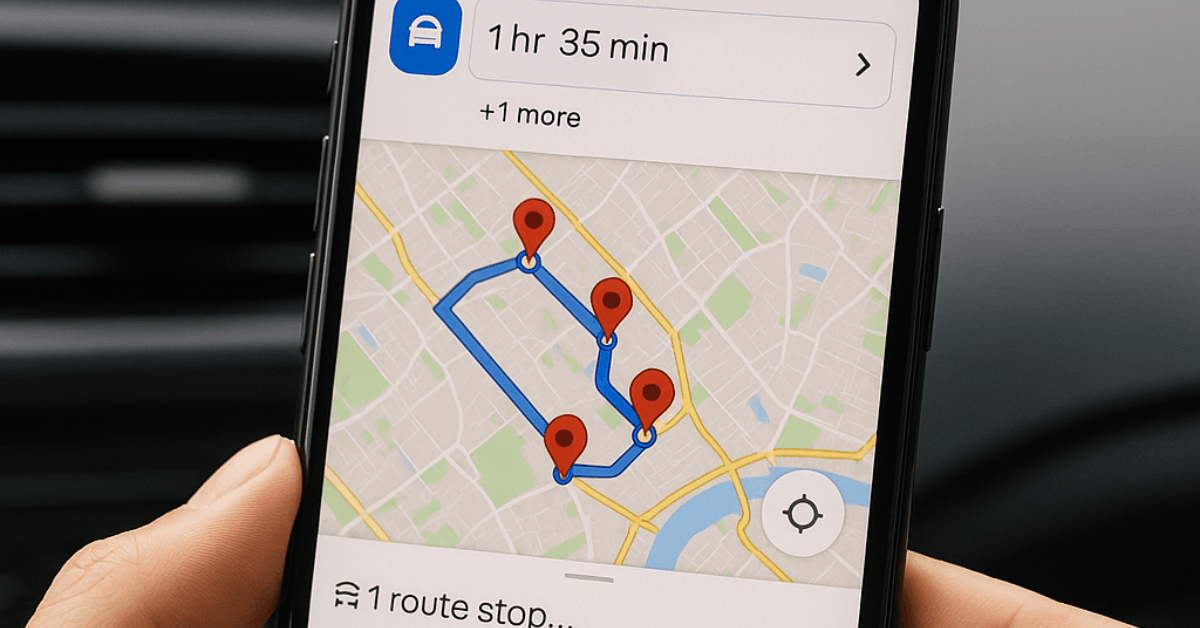
Tap the ⋮ menu ▸ Add stop to chain up to nine intermediate points. Drag handles to reorder stops until the arrival estimate fits your schedule.
Stay Connected Offline and Protect Privacy
Connectivity gaps and data-sharing concerns no longer derail navigation.
Offline Maps
Download regions up to 2 GB in size. Turn on Auto-update offline maps over Wi-Fi so stored data remains current for toll changes or new bypasses.
Incognito Mode
Press your profile photo ▸ Turn on Incognito mode to pause history logging. Searches, routes, and visited places stay local to the device until Incognito is disabled.
Timeline Control
Open Your Timeline to review past trips, edit inaccuracies, or bulk-delete periods. Location history always remains private to the account holder.
How to Plan Complex Journeys: Lists, Google My Maps, and Third-Party Optimizers
Longer adventures demand more structure than a single address search.
Save and organize places:
- Tap Save on any venue card and assign it to Favorites, Want to go, or a custom list such as Summer Road Trip.
- Lists sync worldwide across phone and desktop, making collaboration simple when friends add comments.
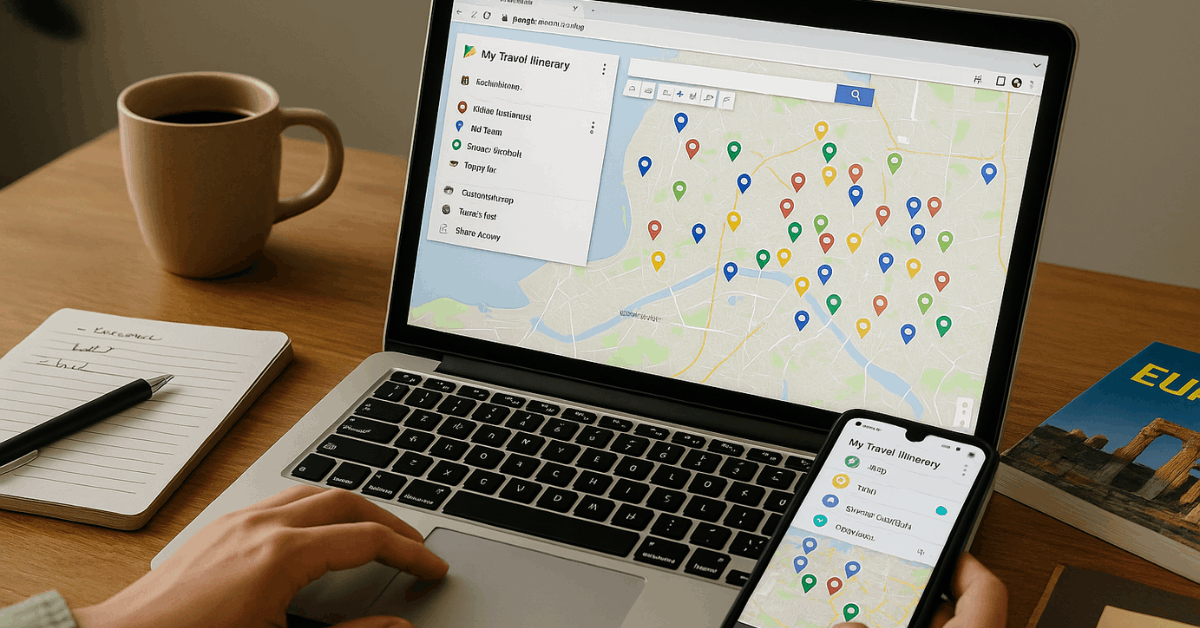
Build custom layers in Google My Maps:
- Browse to mymaps.google.com and click Create a new map.
- Add layers for each trip day or theme (e.g., Food, Landmarks, Nature).
- Color-code pins and attach photos, reservation numbers, or opening-hour notes.
- Share a view-only link or grant edit rights for group refinement.
Optimize Multi-Stop Routes
Google Maps limits driving directions to ten stops and leaves ordering to you.
Integrating a dedicated route planner such as Upper sequences hundreds of addresses automatically, then exports the optimized list back into Google Maps for turn-by-turn guidance.
Ten Power Features That Remove Travel Guesswork
A short intro: Leverage lesser-known tools below to trim delays and boost confidence on every journey.
- Set arrival deadlines: Choose Arrive by under the ⁝ menu to receive leave-time suggestions that account for forecast traffic.
- Popular times graph: View crowd levels ahead to avoid long lines at restaurants or attractions.
- Indoor Live View: Navigate airports, malls, and stations where signage feels confusing.
- Search along route: Look for gas, coffee, or restrooms without rerouting far off course.
- Saved parking location: ap the blue dot ▸ Save parking to mark the spot in sprawling lots.
- EV charging filter: Filter stations by connector type and real-time availability.
- Community reviews and menus: Scan photos, price ranges, and dietary tags before committing to a meal.
- Air quality layer: Check particulate and pollen levels when planning outdoor exercise.
- Location sharing: Send real-time progress to contacts for safety checks during late-night rides.
- Immersive View previews: Glide through AI-generated 3D recreations of landmarks to gauge crowd flow and entrances.
Known Limitations and Smart Workarounds
Every tool has trade-offs; understanding them keeps frustration low.
| Limitation | Impact | Practical Fix |
| Maximum ten driving stops | Splits long delivery or sales routes | Import addresses into Upper for bulk optimization |
| No automatic stop sequencing | Wastes fuel across cities | Manually reorder stops by drag-and-drop or use an optimizer |
| Missing time windows | Harder to hit appointment slots | Add visit durations in pin notes and monitor arrival estimates |
| Collaboration friction in My Maps | Edits can overwrite each other | Give each traveler a dedicated layer before merging |
| Limited pin colors (six) | Visual clutter on dense maps | Assign unique icons plus labels for extra clarity |
| Interface complexity for newcomers | Steeper learning curve | Start with standard Google Maps lists, then graduate to My Maps layers |
Google Maps vs Google My Maps
A concise table clarifies which service solves a specific planning need worldwide.
| Feature | Google Maps | Google My Maps |
| Real-time navigation | ✔ | ✖ |
| Live traffic data | ✔ | ✖ |
| Layers per day or theme | Limited | Extensive |
| Custom icon support | Basic | Advanced |
| Data import (CSV/KML) | ✖ | ✔ |
| Stop limit | Ten on mobile, more on desktop | Unlimited pins, no native routing |
| Offline access | Map tiles only | Full custom map download |
| Route optimization | Manual | Not available |
Conclusion
Installing Google Maps correctly gives you live directions, place insights, and reliable offline coverage almost anywhere in the world.
Add lists for easy bookmarking, turn on Live View to orient yourself in seconds, and layer Google My Maps or a route optimizer when itineraries grow complicated.
Armed with these techniques, you move through unfamiliar cities, remote highways, and crowded transit hubs knowing every turn, detour, and refuel stop in advance, leaving more energy for the experiences that matter.