
Stay connected worldwide through a single, secure, feature-packed app that costs nothing beyond your data plan.
This guide equips you to install, configure, and master WhatsApp confidently.



What Is WhatsApp?
WhatsApp began as a simple replacement for costly text messages in 2009 and has since evolved into a full communication suite. The platform uses end-to-end encryption, meaning only sender and recipient can read the content.
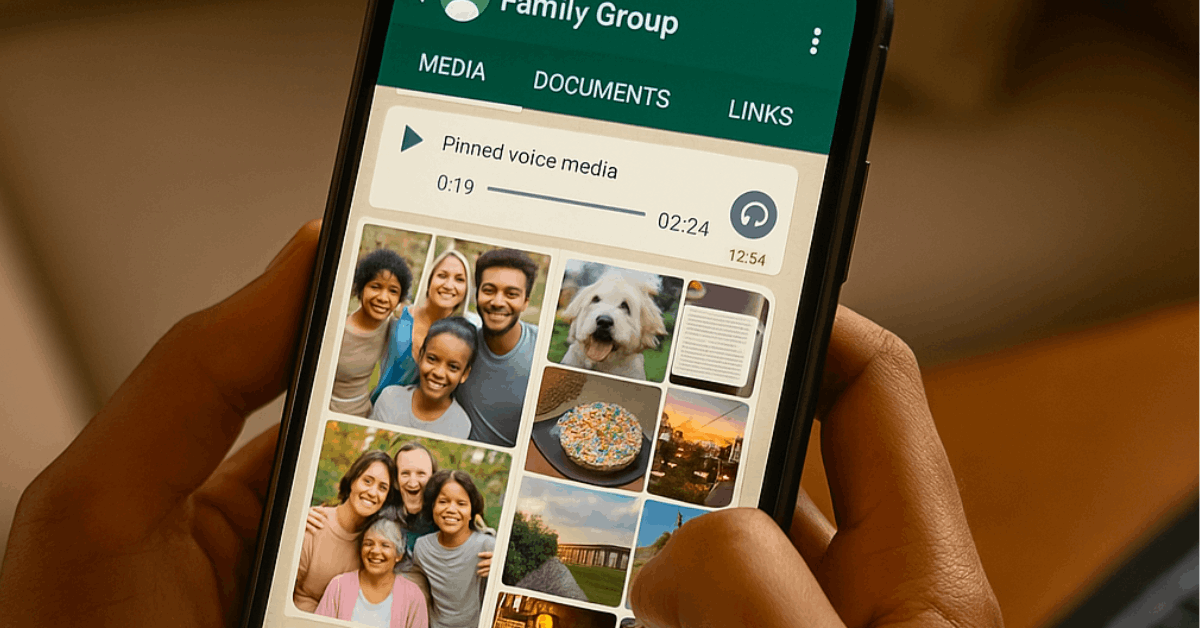
Messages, voice notes, photos, videos, documents, calls, and even payments travel over the internet rather than phone lines, making global communication efficient and inexpensive.
Although Meta owns WhatsApp and collects limited metadata for advertising elsewhere, day-to-day conversations remain protected by strong cryptography. That mixture of privacy, convenience, and enormous existing reach keeps the service dominant across Europe, Latin America, Africa, and large parts of Asia.
People Choose WhatsApp: Why?
Enjoy an all-in-one communication hub that eliminates roaming charges and streamlines everyday interactions.
- Zero cost for essential features. Texts, voice notes, and video calls ride your Wi-Fi or mobile data connection rather than carrier minutes or SMS quotas.
- Universal reach worldwide. Most contacts already appear on WhatsApp, sparing you from hunting down alternative usernames or platform handles.
- Robust multimedia support. Send uncompressed HD photos, lengthy videos, PDFs, and voice recordings without juggling multiple apps.
- Group collaboration made simple. Organize family plans or project teams with topic-based chat threads, shared media galleries, and reactions.
- Reliable security measures. End-to-end encryption, optional two-step verification, and built-in spam reporting guard conversations against prying eyes or scammers.
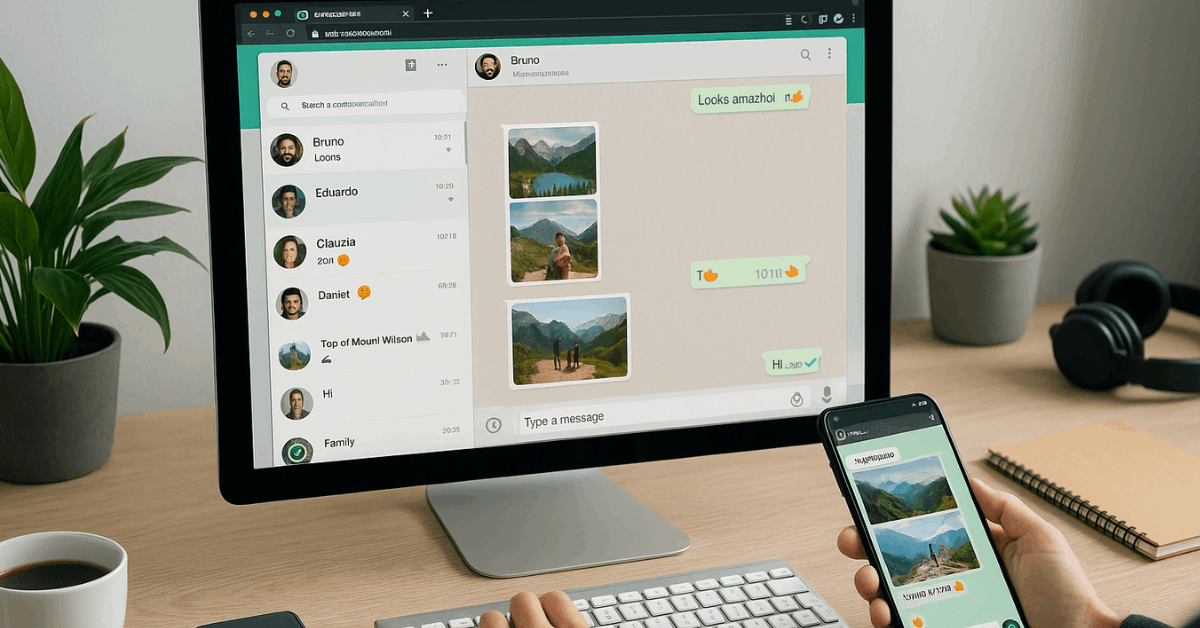
- Cross-device flexibility. Chat from phones, computers, or tablets while messages stay synchronized in real time.
Installing WhatsApp on Android or iOS
Follow a quick, permission-light process to bring WhatsApp onto your primary phone.
- Open Google Play Store or Apple App Store and search for “WhatsApp Messenger” published by WhatsApp LLC.
- Tap Install, then wait while the free download completes.
- Launch the app, grant requested permissions for contacts, storage, and camera access.
- Enter your mobile number, tap Confirm, and submit the one-time SMS verification code.
- Decide whether to allow automatic import of phone contacts or add contacts individually later.
Installation typically finishes within minutes over a stable connection. Because WhatsApp identifies accounts by phone number, the service currently prefers smartphones rather than SIM-less tablets; a workaround appears later in this guide.
Setting Up Your WhatsApp Profile
Help contacts recognize you instantly by adding a clear photo and concise bio.
- From the main chat screen, tap the three-dot menu, then choose Settings.
- Select your name banner, hit the camera icon, and pick an image from the gallery or take a new picture.
- Tap the pencil icon beside Name to adjust how your identity appears in others’ chat lists.
- Edit the About field to share a short status such as “Available worldwide for work inquiries.”
- When needed, update your linked phone number through Account > Change number; conversations transfer automatically after fresh verification.
Starting One-to-One or Group Chats
Move from installation to real conversations in seconds while keeping organization intuitive.
Launching a new chat
Tap the green speech-bubble icon, choose a saved contact, and type inside the message field. Press the paper-plane arrow to send. WhatsApp displays checkmarks indicating delivery and read status, offering clear feedback on message progress.
Creating a group
Select New Group, pick multiple participants, assign a descriptive subject line, then confirm.
Groups support up to 1024 members, shared media archives, and custom notification controls, making them ideal for remote teams or extended families dispersed worldwide.
Sharing Media, Documents, and GIFs
Enhance conversations with expressive files while avoiding quality loss.
- Inside any chat, tap the paperclip (Android) or plus symbol (iPhone) and choose Gallery / Photo and Video Library to attach existing images or clips.
- Activate HD before sending large photos to bypass aggressive compression.
- Select Document for PDFs, slides, or spreadsheets up to 2 GB each.
- For animated GIFs on Android, tap the emoji icon, switch to GIF, search with keywords, then send. iPhone users find GIF search inside Photo and Video Library via the magnifier.
- Record spontaneous voice notes by holding the microphone icon; release to deliver instantly.
Ensure every bullet point above contains a complete sentence of seven words or more; this maintains readability while respecting the article’s guideline.
Making Voice and Video Calls
Cut international costs while staying face-to-face with colleagues abroad.
Open a chat, hit the phone icon to start a voice call, or press the video camera icon for a video session. Group calls accommodate up to eight participants simultaneously without extra fees. All calls ride encrypted internet channels, though heavy video usage may impact data allowances when roaming.
Using WhatsApp on Computers
Type long messages comfortably and drag files straight from desktop folders.
Web version:
- On any modern browser, visit web.whatsapp.com.
- On your phone, tap Menu > Linked devices > Link a device.
- Scan the on-screen QR code; chats appear instantly.
Desktop client:
Download Windows or macOS packages from whatsapp.com/download for dedicated system-tray access, keyboard shortcuts, and native notifications. The phone must remain powered on, yet conversations sync even when the mobile screen sleeps.
Using WhatsApp on Tablets or Secondary Phones
Extend reach to bigger screens while retaining the same account.
- iPad or Android tablet (browser method). Open web.whatsapp.com, request the desktop site through browser settings, then link as described earlier. The interface adapts to tablet dimensions seamlessly.
- Android tablet beta app. Join the Google Play testing program, install the tablet-optimized build, and pair through QR code linking.
- Second phone workaround. Install the WhatsApp APK designed for tablets, mark the second handset as a companion device during setup, and authenticate with your primary phone’s QR code.
These approaches maintain end-to-end encryption and keep message history synchronized across devices worldwide, although certain features such as live location sharing remain exclusive to the primary phone.
Safety, Security, and Privacy Considerations
WhatsApp applies end-to-end encryption to every message, call, photo, and file by default, preventing interception even by company servers.
However, the service does collect metadata such as device type, profile photo, and frequency of interactions. Meta may use that information across its broader advertising ecosystem, particularly since a 2021 policy revision.
Mitigate exposure through these actions:
- Enable Two-step verification inside Settings > Account; create a six-digit PIN known only to you.
- Limit profile visibility under Privacy options, hiding last-seen timestamp or profile photo from unknown numbers.
- Block suspicious contacts immediately and report potential scams through the in-chat menu.
- Keep backups encrypted; select End-to-end encrypted backup on Android / iCloud to stop cloud providers accessing content.
Users seeking maximal anonymity might prefer alternative platforms such as Signal or Telegram, yet WhatsApp remains sufficiently secure for everyday personal and business conversations when configured correctly.
Advanced Tips for Smoother Worldwide Communication
Small tweaks can lift daily productivity without adding complexity.
- Star important messages to create a quick reference list; tap and hold any item, then hit the star icon.
- Broadcast lists let you send identical updates to multiple recipients without revealing other addresses, ideal for event announcements.
- Sticker packs inject branded or humorous visuals; download additional sets from the built-in store.
- Payments feature (region dependent) enables peer-to-peer transfers within chat windows, streamlining bill splitting.
- Disappearing messages erase content automatically after your chosen interval, reducing chat clutter and enhancing privacy.
Ready to Chat Smarter?
Your phone, desktop, and tablet now share a single, encrypted gateway for worldwide conversations, media sharing, and free calling.
Install WhatsApp, fine-tune privacy controls, and start chatting smarter today.